
In order to create a new checklist, open the Checklist Template Import Creator and you will be presented with the empty template. There are 38 columns within which to enter the information required to import the checklist. You may add extra columns if additional area of standards wish to be imported (see Area of Standards for more information). You cannot import a checklist that has more than 500 questions on it.
To manage the import please follow the guidance below.
Checklist Template
The first row entered should always be the name of the checklist template - together with a description, whether to allow auditor actions on the checklist and the Guid of the Organisational Unit (see troubleshooting for finding the Guid of an Organisational Unit) that you wish the checklist to be associated with.
It is important to note at this point that if you do not enter anything in the OrgUnitId cell, then the checklist will be associated to the default Organisational Unit.
NOTE: Do not enter any text within any other columns on this row as this will cause the import to fail.
The following rows are used to enter the information relating to your checklist – i.e. Sections and Questions. The order that they are entered is the order they will appear on the checklist.

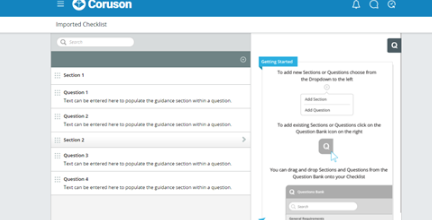
Sections
The only columns in which data should be entered are the Section and Location columns:
- Section – the name of the section to be created
- Location – the section location that the section is to be located. If this is left blank, then this will be in the root folder of the checklist. The location should be entered in the form of a hierarchical path (see Entering Hierarchical Paths for more information).
NOTE: when entering a location for a section or question, please ensure that the section is above any items that should be contained therein.
Entering data in the Section column and any other column other than Location will result in the import failing and an email will be sent (see Emails for more information).
Area of Standards
When importing area of standards, the application checks whether the area of standard exists already within the system and if so adds that existing standard to the question. If it doesn’t exist a new area of standard will be created and linked to the question. If the area of standard exists within the system but is archived, then the import will fail. You will be prompted in an email to either alter the area of standard to be imported or else re-instate the archived area of standard within the system.
An unlimited number of area of standards can be imported on each question. Initially this is set to 15, however if you wish to increase the number then simply add as many extra columns in the first row as is needed, following the naming same conventions - I.e. AOS16, AOS17 etc.
NOTE: Do not alter, move or remove any other columns and do not alter other column header names – doing so will invalidate the import.
Questions
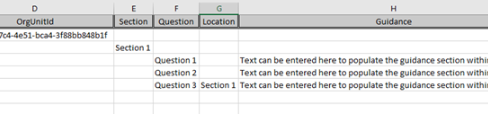
When entering information pertaining to a question, information should be entered in the following columns:
- Question – the name of the question to be entered.
- Location – the section location that the question is to be located. If this is left blank, then this will be in the root folder of the checklist. The location should be entered in the form of a hierarchical path (see Entering Hierarchical Paths for more information).
- Guidance – the guidance that is to be associated with the question.
- AA1 to AA15 – within each column the Auditor Action wishing to be imported should be entered within the cell. Any cells left blank will not be imported as an auditor action. These actions are hierarchical and will appear in the order of 1-15. Auditor Actions are limited to 15.
Entering data in the Question column and any other column other than the ones stated above will result in the import failing and an email will be sent (see Emails for more information).
Entering Hierarchical Paths
When entering paths, they must follow a specific hierarchical pattern. For example, if you were to have a question within a section which is in the root directory, the section (as it is in the root) would have an
empty cell within its Location column. The question however would have the name of the section.
If there are multiple layers to the path, such as is the case with area of standards, then the location would be split by a forward slash “/”. For example if the hierarchy is:
IOSA Standards
Then the path would be “IOSA Standards/Clause 1” (see images below). This also applies to Questions and Sections (see images below). This can be used for any level of hierarchy, however when creating questions, you must ensure that the location has been created before adding it as a location.
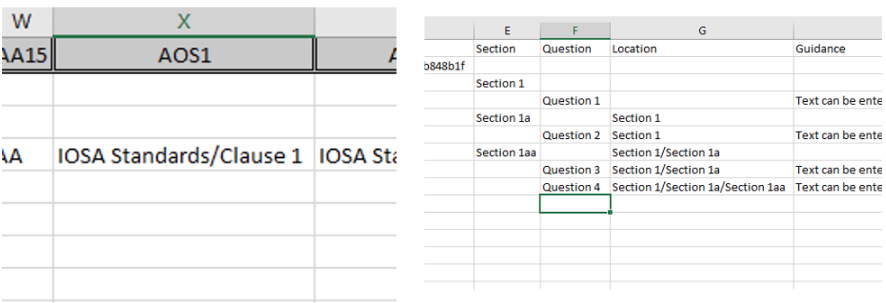
NOTE: Ensure that you do not use a forward slash “/” character in the names of your standards, sections or questions as this will cause the import to fail. Only use a forward slash “/” specifically to delineate a new layer
to the location or area of standard.
Importing a Checklist Template
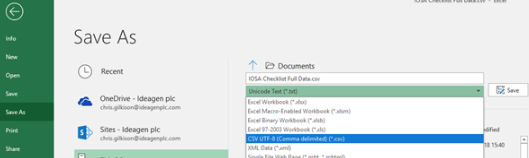
Once you have completed the Checklist Template Import Creator, save the spreadsheet as a CSV UTF-8 (Comma delimited) (*.csv). Any other format is not supported.
Open Coruson, then navigate to Administration, Audit Admin and then select Checklist Templates. You will be presented with the Checklist Template Register.
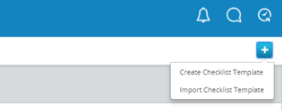
Click on the plus icon at the top of the page and select Import Checklist Template.
When the selection window opens, click on the link to open windows explorer and navigate to the csv file you have saved and would like to upload.
Finally, click [Import].
You will receive an email once the import has either successfully imported or failed (see Emails for more information).
NOTE: Only csv files in the CSV UTF-8 (Comma delimited) (*.csv) format are valid to upload, and any other type of file will receive an error message.
Emails
The user will receive an email on either the success or failure of the import. If the import has failed validation, a detailed description of the reasons for the failure will be included in the email. If for any reason the import has failed after validation – i.e. during the execution of the import – an email will be also be sent informing of this failure. In this situation you should attempt to import the checklist again.
If the checklist continues to fail, then please contact support.
Troubleshooting
Formatted Characters
It is important to note formatted characters are not supported within the import. If copying text from an external source, please ensure it is plain text and not formatted in anyway, as this could cause the import to fail or import data incorrectly.
GUID’s
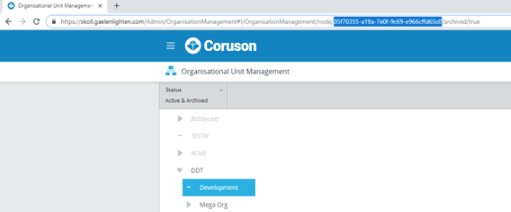
To find the Guid of an Organisational Unit navigate to Administration> People and Security > Organisational Unit Management.
Select the Organisational Unit you wish to get the Guid for, then within the address bar the id is located between ‘node’ and ‘archived’, minus the slashes.
Comments
0 comments
Please sign in to leave a comment.